Different Ways to Convert NSF to PST
In this communication era, email clients are being widely used all over the world in order to send/receive emails. Besides, they are used to store task, calendar, contacts, journal & documents. The mostly used email clients are Microsoft Outlook and IBM Lotus Notes. Now-a-days, most of the organizations are likely to prefer Outlook to Notes. In this post, I will explain different methods to convert NSF to PST.
Lotus Notes NSF & Outlook PST Overview:
Lotus Notes & NSF File:
Lotus Notes is a client side application introduced by IBM. The file format that Lotus Notes and Domino Server use to store their emails, appointments, calendar, documents is known as NSF (Notes Storage Format).
Outlook & PST File:
Outlook is an email client application introduced by Microsoft. It stores all of its emails, contacts, calendar, journal, task & messages in a file having extension PST (Personal Storage Table).
When to perform NSF to PST Conversion
Users migrate from Lotus Notes to Outlook due to various reasons, some of them are listed below:
- MS Outlook allows you to access your mailbox in offline mode.
- MS Outlook provides user friendly interface.
- MS Outlook requires less maintenance cost.
- MS Outlook provides more security than Lotus Notes.
- Data management & data sharing is easier.
Methods to Convert NSF to PST
There are various methods to convert Lotus Notes NSF to Outlook PST. One can move his Lotus Notes/Domino database to Outlook by using utilities provided by Microsoft such as DAMO and Microsoft Transporter Suite.
Other methods to do this process are Export-Import method and NSF to PST Converter. Go through with the following methods and their corresponding steps so as to perform the migration process.
Export/Import method is one of the simplest method to access your NSF file in MS Outlook. But make sure to backup NSF File before starting the conversion process. This method consists two steps which can convert NSF to PST, are given below:
- Export IBM Lotus Notes NSF File
- Import exported file in outlook
1 Export Lotus Notes NSF File
Step 1. Open Lotus Notes application
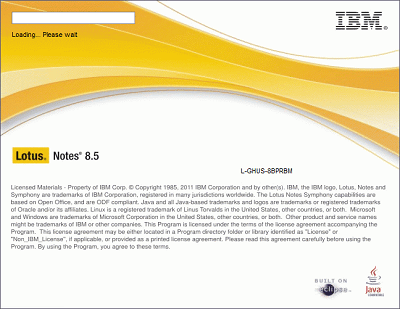
- Step 2. Now Open NSF file that need to be exported
- Step 3. Go to Mail >> File >> Export
- Step 4. Browse a location to save exported NSF file and Select Comma Separated Value or Structured Text in Save as type
- Step 5. A new screen will be displayed. Select OK to proceed.
2 Import exported file in outlook
Step 1. Initialize Microsoft Outlook
Step 2. Click on File > Open > Import
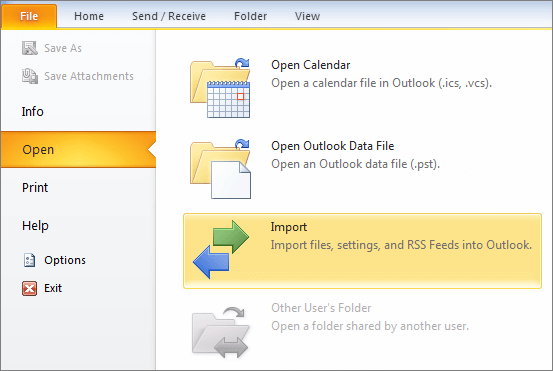
- Step 3. Import and Export screen will be displayed. Select option "Import from another program or file". Click Next to proceed.
- Step 4. In this step, select Comma Separated Values (Windows) and then click Next.
- Step 5. Now Open the file that need to be imported. Click next to proceed.
- Step 6. Browse the destination location to save the resultant file. Click Next.
- Step 7. Now the file is being imported. Click Finish to complete the process.
Lotus Notes to Outlook Conversion can be carried out by using DAMO short for Domino Access for Microsoft Outlook.
System Requirements:
- Operating system: Windows XP/Vista
- Processor: Intel Pentium or higher(32 bit or 64 bit)
- RAM: 512 MB
- Disk space: 1.5 GB
Convert NSF to PST- Follow the below steps
- Step 1. DAMO installation: Launch DAMO application and complete the steps that are required to finish installation.
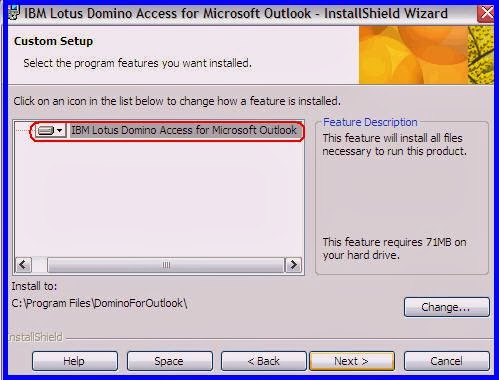
- Step 2. Set up Domino Access for Microsoft Outlook (DAMO): A new screen will be displayed. Provide User Name and Domino Server Name.
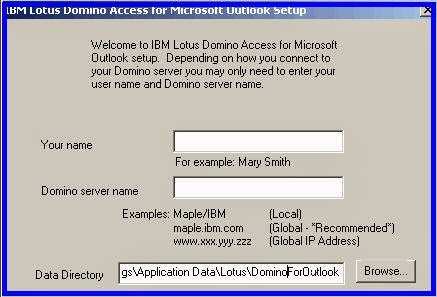
- Step 3. If setup is unable to connect to Domino Server then you need to enter server's IP address.
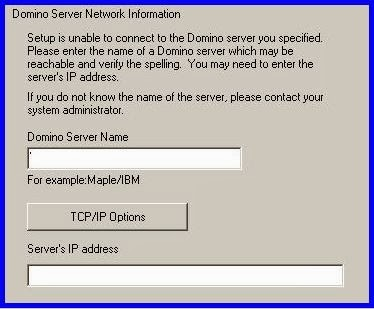
- Step 4. Once DAMO set-up has been completed, close Outlook.
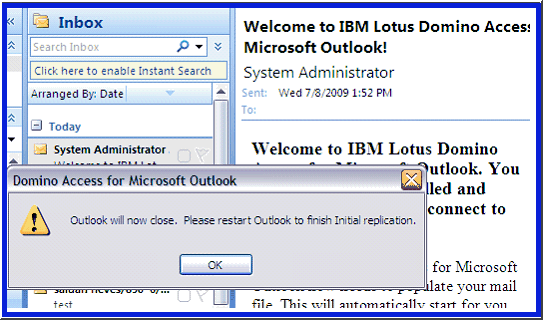
- Step 5. Now reopen MS Outlook and select your MAPI profile. Enter the password in the displayed screen.
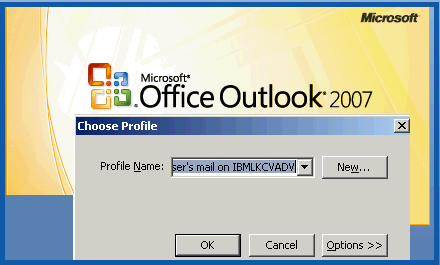
Microsoft provides an inbuilt utility for NSF to MS Outlook PST migration. This tool is known as Transporter Suite which is designed to move data from Lotus Domino 6, 7, 8, and 9, POP /IMAP servers to MS Outlook, Exchange 2007, Share Point.
Follow the below steps to migrate Lotus database to Exchange Server then convert it to PST:
Step 1. Download the utility: transporter32.msi (32 bit) or transporter.msi (64 bit).
Step 2. Install Microsoft Transporter Suite set-up.
Step 3. Select the components to be installed and browse the location. Click Next to proceed.
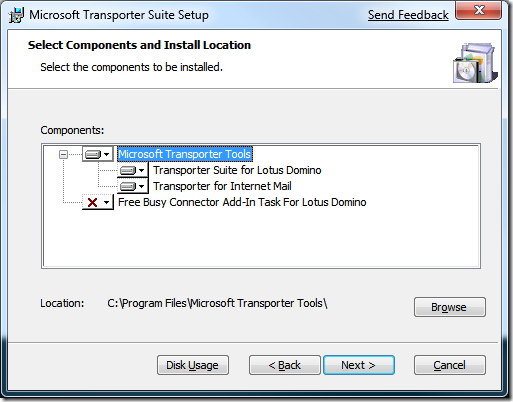
Step 4. Once Transporter for Internet Mail component is selected, a new window will pop up. Click on Add Mailboxes.
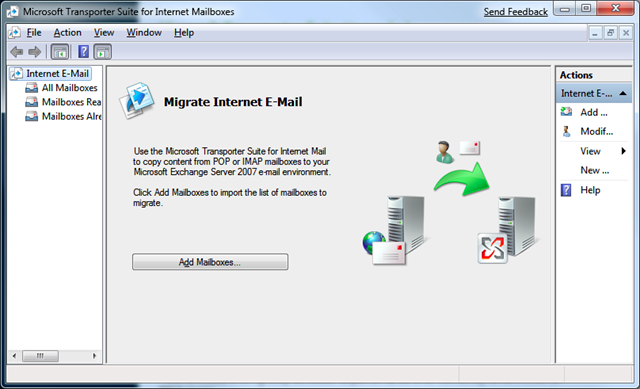
Step 5. Create a CSV file with the following attributes:
- SourceIdentity: User's email id
- SourceServer: Name/IP address of the POP Server
- SourceLoginID: Account user name used to connect to the server
- SourcePassword: User's password
- TargetIdentity: Email ID
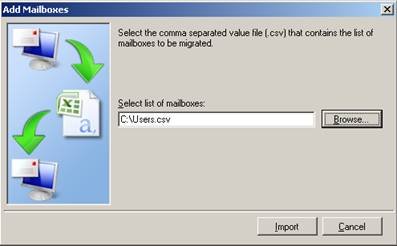
Step 6. Browse CSV File and click on import.
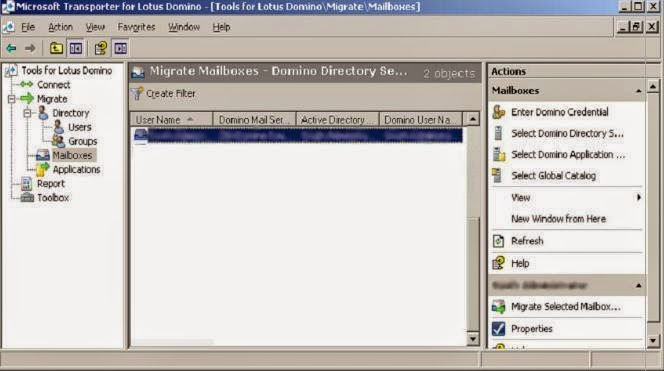
Step 7. In the left panel, select Mailboxes. In the right panel, select migrate selected mailbox.
Step 8. Select the type of mailboxes to copy as shown in below image. Click next.
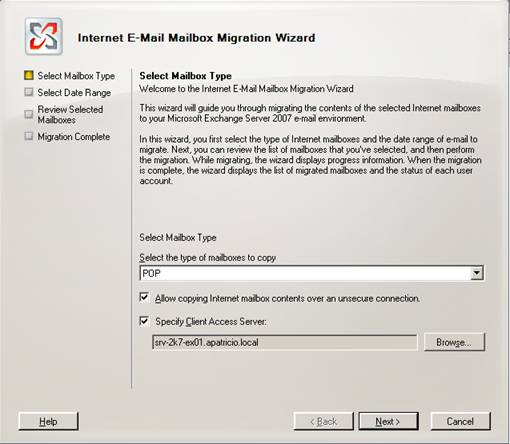
Step 9. This step will allow you to migrate data of specific date range.
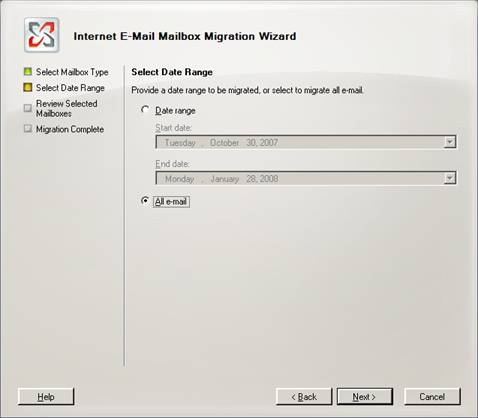
Step 10. Once export process is complete, click Finish to exit Microsoft Transporter Suite.
Reliable and effective way to convert NSF to PST is perform the migration with a help of third party tools since they overcome all the limitations of manual methods.
DAMO lacks some functionality such as incompatibility with latest versions of MS Outlook and when it comes to Transporter Suite, it also lacks in converting encrypted NSF Files. These procedures are lengthy as well as time consuming. Besides, If NSF Files gets highly corrupted then its more likely that manual methods will fail in completing migration process.
NSF to PST Converter features developed by experts:
- Export Encrypted Lotus Notes & Domino database
- Maintain internal structure while moving NSF to PST
- Recover and Convert corrupt/damaged NSF files to Outlook
- User friendly graphical interface
- Support all versions of IBM Lotus Notes and MS Outlook